
You forgot the laptop, the printer is out of toner, or you just prefer to travel light. You can run most of a Toastmasters meeting from a phone if you do a little preparation first. Here is what to set up and how each role works, with the exact steps in Toastmanagers.
Before you leave home
- Download the PDFs. Save the agenda and speaker introductions while you have a good connection. A file on your phone doesn't care about the signal in the meeting room.
- Silence notifications. Turn on Do Not Disturb, so a group chat doesn't light up in the middle of someone's speech.
- Extend your screen timeout. Set auto-lock to several minutes or longer. Toastmanagers doesn't keep your screen awake for you, and a dark phone is no use as a timer.
- Charge up. A screen left on for two hours uses real battery. Bring a cable if you are the Timer.
- Check the venue's signal. Basements and hotel function rooms are often poor. Ask for the Wi-Fi password in advance.
The VP Education or meeting lead
Your phone's main job is handling changes. On the Schedule page, roles stay pinned on the left and you swipe between meetings. Tap anyone's name to swap them out, or use search to find a member or role. For the next meeting, each role also has an attendance control, so you can mark who showed up as people arrive.
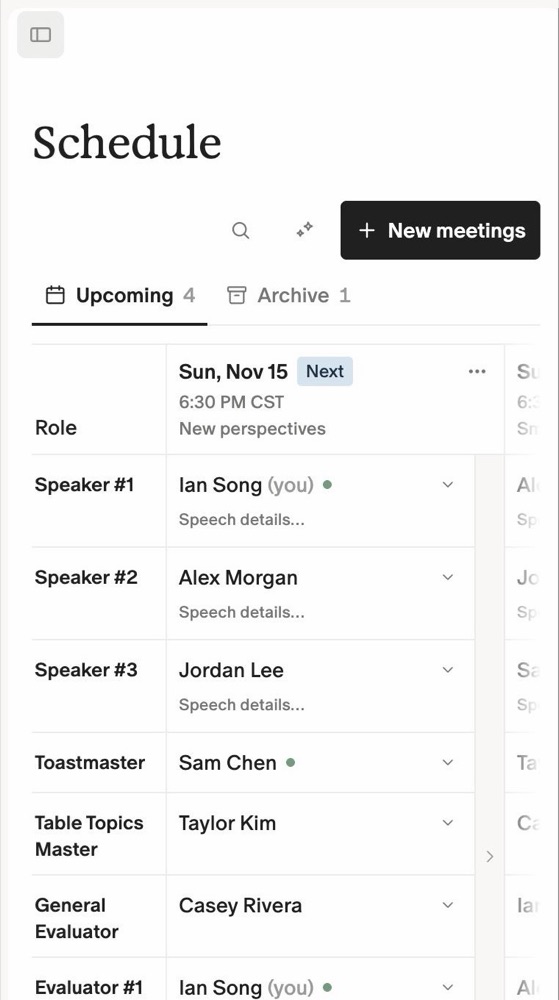
If you have to move or cancel a meeting, do it from the three-dot menu at the top of that meeting. Members can be notified by email, so you don't have to write to everyone yourself.
The Toastmaster
Open the three-dot menu on the meeting, choose Downloads, and save the Agenda PDF and the Speaker introductions PDF. The introductions sheet gives you every speaker in order, so you can read from your phone at the lectern.
The Timer
Go to Utilities and open Meeting timer. Pick the agenda segment, then choose a preset:
- Table Topics, 1 to 2 minutes
- Speech, 5 to 7 minutes
- Ice Breaker, 4 to 6 minutes
- Evaluation, 2 to 3 minutes
- Custom, for anything else
Press Start. The whole page turns green, then yellow, then red as each time passes, so you can see where things stand at a glance. A phone is too small for a speaker to read from across the room, so keep the phone in your hand and raise your usual colored cards when it changes.
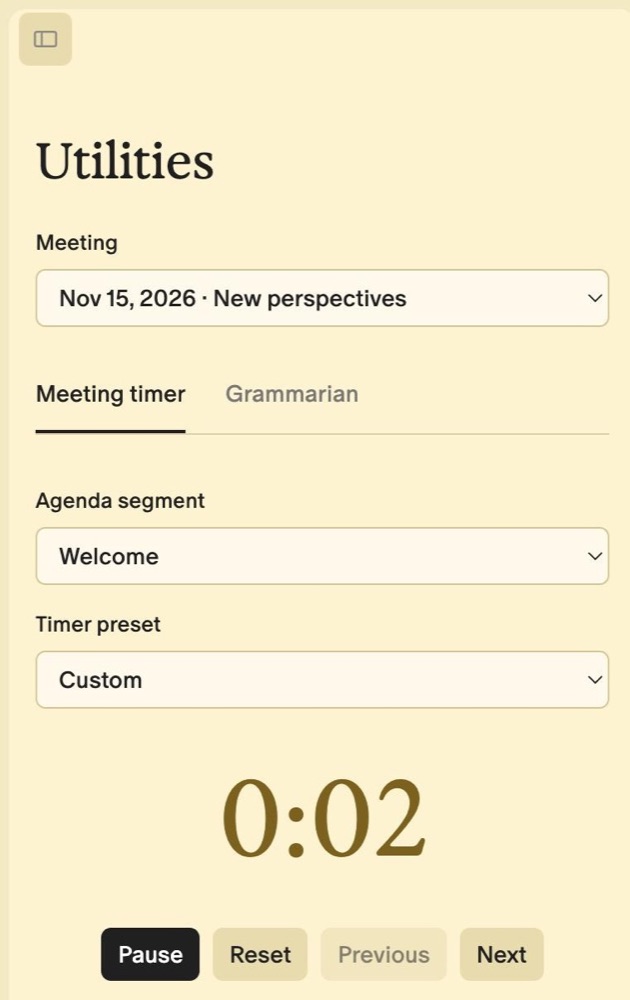
When the speaker finishes, type their name and press Log time. The time goes into the meeting's timing log. If your signal drops, logged times wait in your browser, and a button lets you save them once you are back online.
The Grammarian
In Utilities, switch to the Grammarian tab. Enter the Word of the Day, then pick a speaker and tap plus each time they use it. You can also note improvements and praise for each speaker, then download a report for your closing remarks.
The Ah-Counter
Toastmanagers has no dedicated filler-word counter yet. A paper tally or your phone's notes app works fine: one line per speaker, one mark per "um" or "ah".
Everyone else
- Check your role. Your reminder email links back to the club schedule.
- Answer availability requests. Tap "I'll be there" or "I can't make it" in the email.
- Ask for a role. Open the meeting's menu and choose Request a role.
What is still easier on a laptop
A phone shows one meeting at a time, which is ideal on the day and less so for planning. Save these for a bigger screen: first-time club setup, importing a roster, comparing several months of roles, and rearranging your agenda template.
Run Your Next Meeting From Your Pocket
Free for core club ops. Nothing to install.
Get Started FreeNo credit card required.
Frequently Asked Questions
Can I use a phone as the Toastmasters timer?
Yes. Set your screen timeout first, and keep colored cards or another visible signal for the
speaker, because a phone screen is hard to see from the front of a room.
Do I need to install anything?
No. Toastmanagers runs in your phone's browser on iPhone and Android. Curious about the
alternatives? See our comparison of club apps.
What happens if I lose signal during the meeting?
Times you log stay in your browser until you can save them, and PDFs you downloaded beforehand
stay on your phone.